



MacOS Proxy Integration
This guide may be outdated. For an up-to-date guide please see our documentation.
Bright Data and macOS proxies
Proxies help safeguard your online activities and enable access to websites that might be restricted in certain locations. This guide will assist you in connecting Bright Data’s esteemed proxy services with your macOS, ensuring your internet browsing is secure and swift.

How to integrate proxies with macOS
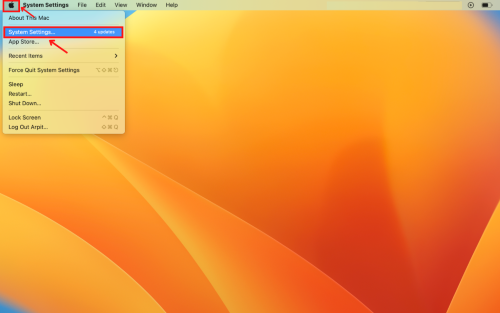
Navigate to System Preferences:
Click the Apple icon in your screen’s top-left corner and select “System Preferences”.
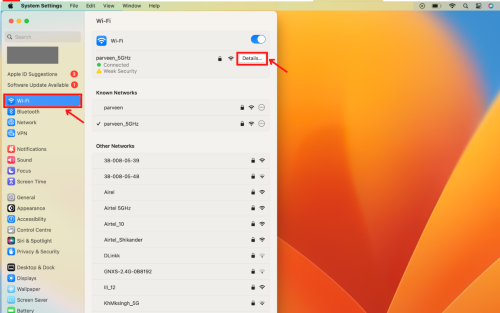
Access Wi-Fi Settings:
Click on “Wi-Fi” in the sidebar, then click the “Details” button beside your connected network.
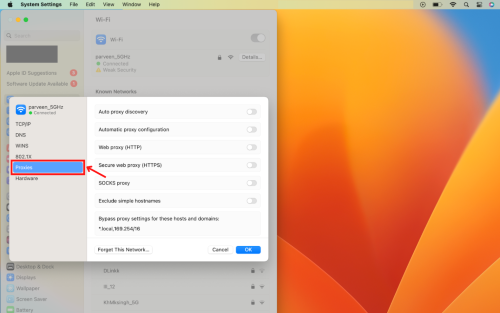
Enter Proxy Settings:
Navigate to the “Proxies” tab and select a protocol to configure.
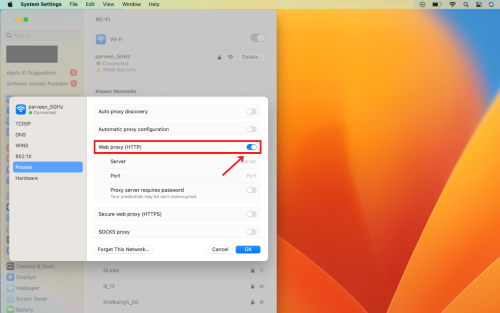
Enable Web Proxy:
Switch on the “Web proxy (HTTP)” toggle to enable it.
*The above will work only for HTTP sites and not for both HTTP and HTTPS so when setting up the proxy you should choose both HTTP and HTTPS and fill both with the same credentials.
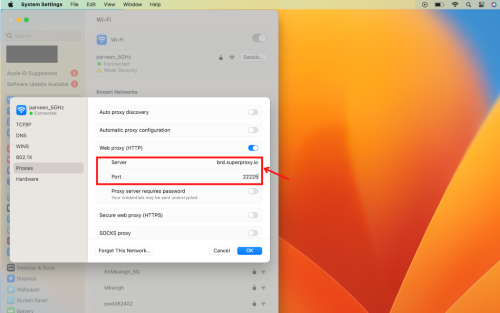
Input Server Details:
- In the “Server” field, type brd.superproxy.io.
- In the “Port” field, type 33335.
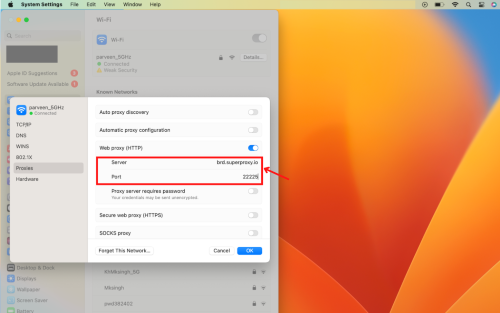
Enable Password:
Check the “Proxy server requires password” box and input your username and password in the provided fields.
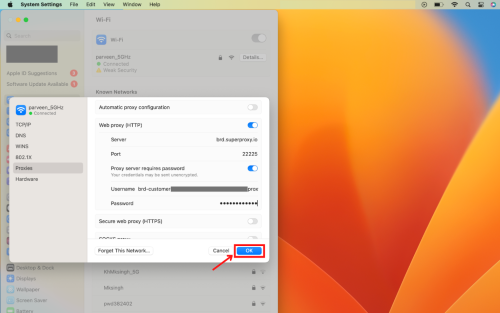
Save and Begin:
Click “OK” to save the configurations.Voila! Your proxy is now active.
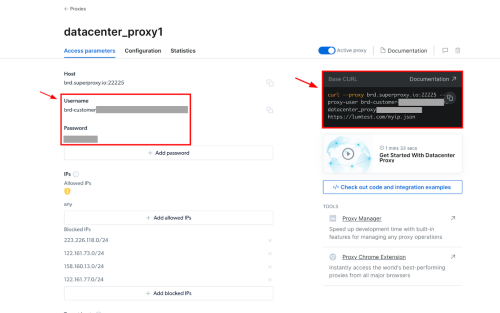
Note:
You can find your proxy credentials in the “Access Parameters” tab under your preferred proxy zone within your Bright Data account.
⚠️Important note: If you are using Bright Data’s Residential Proxies, Web Unlocker or SERP API, you need to install an SSL certificate to enable end-to-end secure connections to your target website(s). This is a simple process, see https://docs.brightdata.com/general/account/ssl-certificate#installation-of-the-ssl-certificate for instructions.
Get proxies for macOS
수상 경력에 빛나는 프록시 인프라로 구동됩니다
400 million개 이상의 주거용 IP, 최고 수준의 기술력, 그리고 국가, 도시, 우편번호, 통신사, ASN을 대상으로 할 수 있는 능력은 저희 프리미엄 프록시 서비스를 개발자들에게 최고의 선택이 되게 합니다.
모든 개발 경로를 위한 프록시
네트워크, 피어, IP를 자유롭게 조합하여 지속적인 웹 데이터 흐름을 최적화하세요.


Proxy Network Pricing


- 무제한 확장성
- 무제한 좌석
- 프리미엄 SLA
- 99.99% 네트워크 가동 시간
- 무료 프록시 관리자
- 완전한 데이터 커버리지
- GB당 맞춤형 가격
- 맞춤형 솔루션
- 무제한 확장성
- 무제한 좌석
- 프리미엄 SLA
- 99.99% 네트워크 가동 시간
- 무료 프록시 관리자
- 완전한 데이터 커버리지
- GB당 맞춤형 가격
- 맞춤형 솔루션
- 무제한 확장성
- 무제한 좌석
- 프리미엄 SLA
- 99.99% 네트워크 가동 시간
- 무료 프록시 관리자
- 완전한 데이터 커버리지
- GB당 맞춤형 가격
- 맞춤형 솔루션
- 무제한 확장성
- 무제한 좌석
- 프리미엄 SLA
- 99.99% 네트워크 가동 시간
- 무료 프록시 관리자
- 완전한 데이터 커버리지
- GB당 맞춤형 가격
- 맞춤형 솔루션

프록시 및 데이터 수집 분야의 선도 기업

650 매일 수집되는 공개 데이터 TB

매일 새로운 기능이 출시됩니다

세계 최고의 대학 7/10개 제공
