


Linken Sphere Proxy
Using Bright Data proxies with Sphere Browser improves web scraping and browsing by offering secure, anonymous connections and reducing the risk of detection and bans.
This guide may be outdated. For an up-to-date guide please see our documentation.

- 400M+ Residential IPs
- Sticky and rotating sessions
- 99.95% success rate
- Geo-location targeting - FREE
What is Linken Sphere Browser?
The Linken Sphere Browser, acclaimed for its Chromium-based anti-detection capabilities, is an essential tool for managing multiple online identities with heightened privacy. This browser changes or encrypts detectable data, providing each session with a disposable virtual identity. This guide outlines the integration of Bright Data’s proxies with Sphere Browser on Mac OS. Though the process is similar across other operating systems, ensuring a seamless setup to enhance online anonymity and security.
Steps to integrate Linken Sphere with Bright Data proxies:
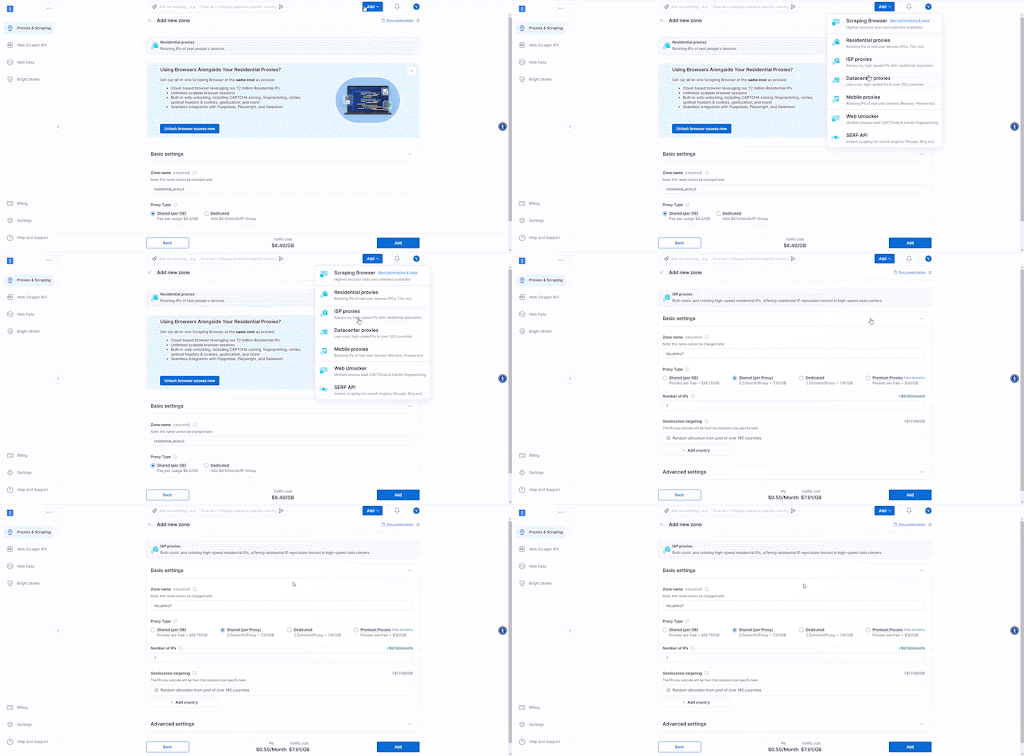
Sign up to Bright Data:
After signing up, in the Bright Data dashboard, navigate to the “Proxy & Scraping Infrastructure” section and Add a new designated Zone for your proxy usage.
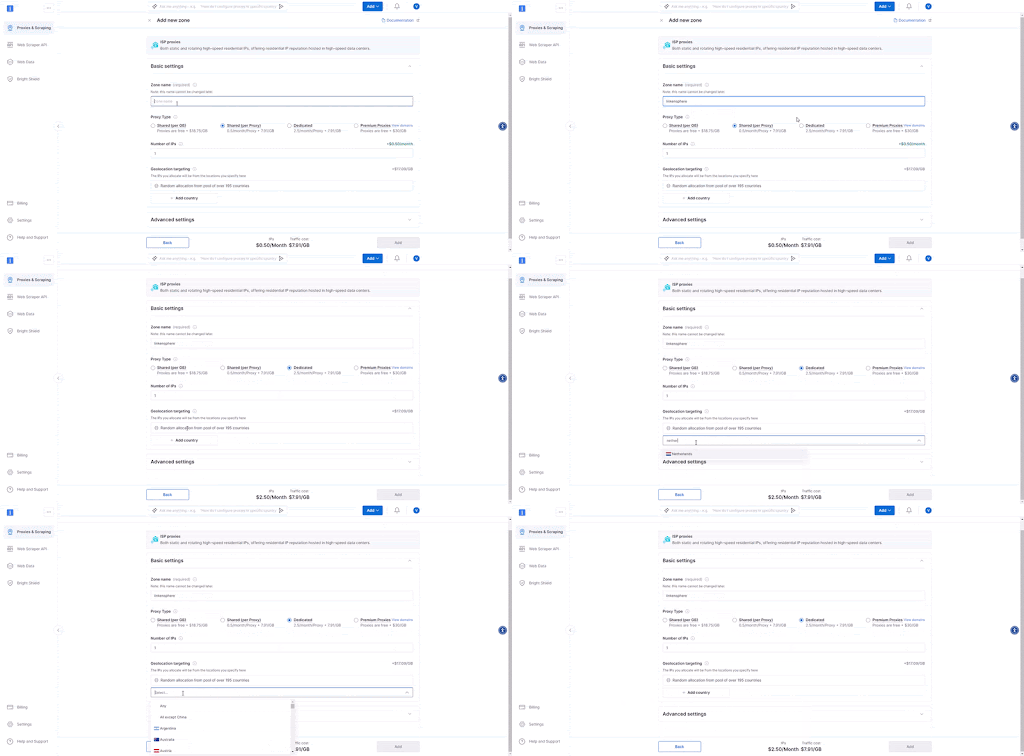
Configure the proxy zone:
After creating the new zone, you need to specify its name and choose the type of proxy you plan to use. Additionally, you have the option to set the required geographical location for the proxy servers, if necessary for your tasks. Once all parameters are configured, click the “Add” button to complete the process.
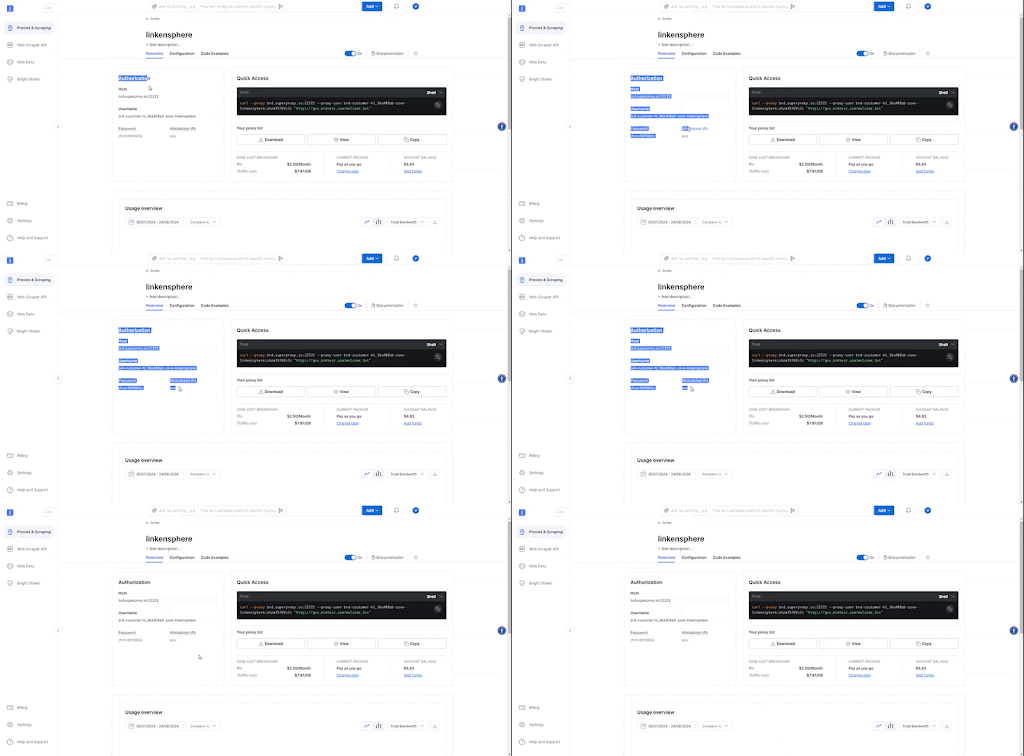
Find the "Authorization" block:
After clicking the “Add” button, a new window with various settings will open in front of you. In this window, pay attention to the “Authorization” block. Here you will find all the necessary information for connecting proxy servers, including authorization data. This data includes ip@login, and other parameters that you will need for setting up and using the proxy.
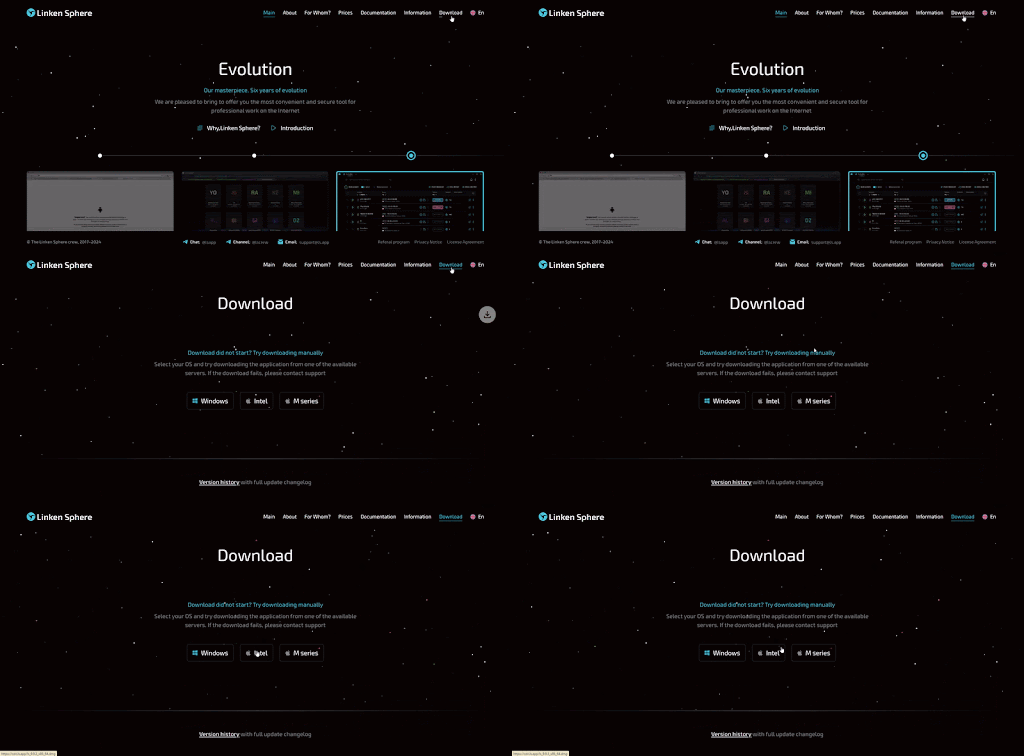
Download the Linken Sphere browser:
After downloading, install it on your device by following the instructions provided on the official website.
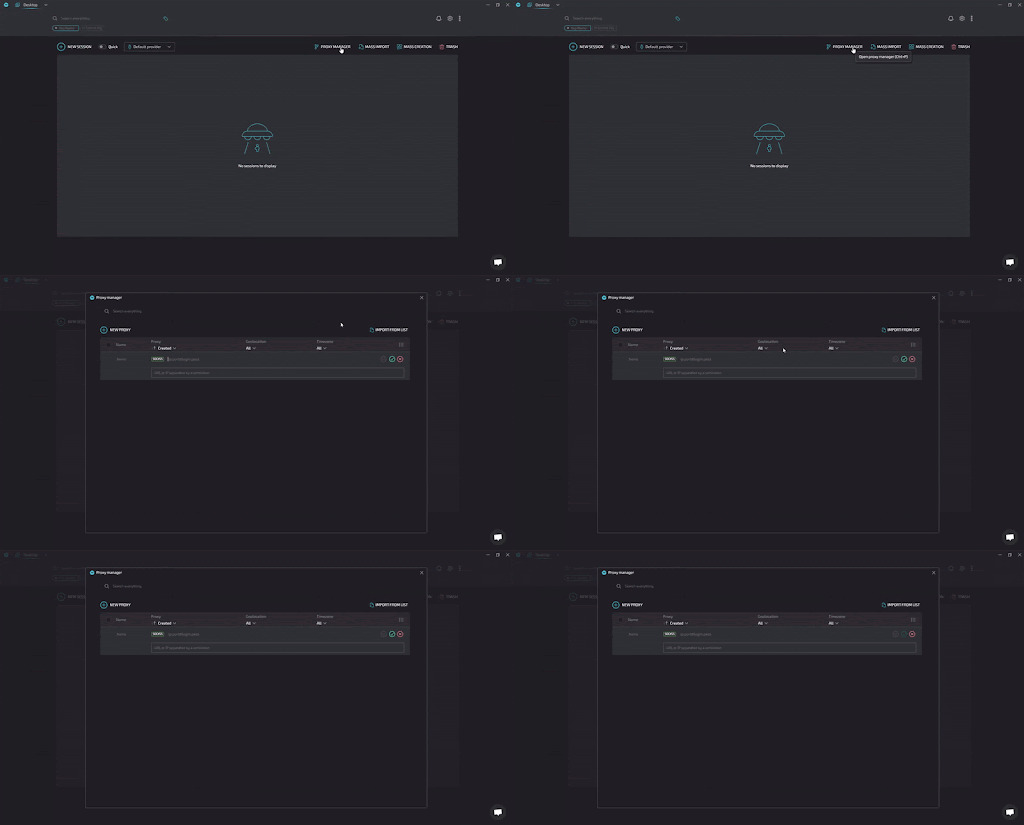
Log in to your account:
After successfully installing and launching the browser, log into your account. Once you are logged in, go to the main menu and select the ‘Proxy Manager’ section. This menu allows you to manage all your proxies, add new proxies, and configure their parameters according to your needs.
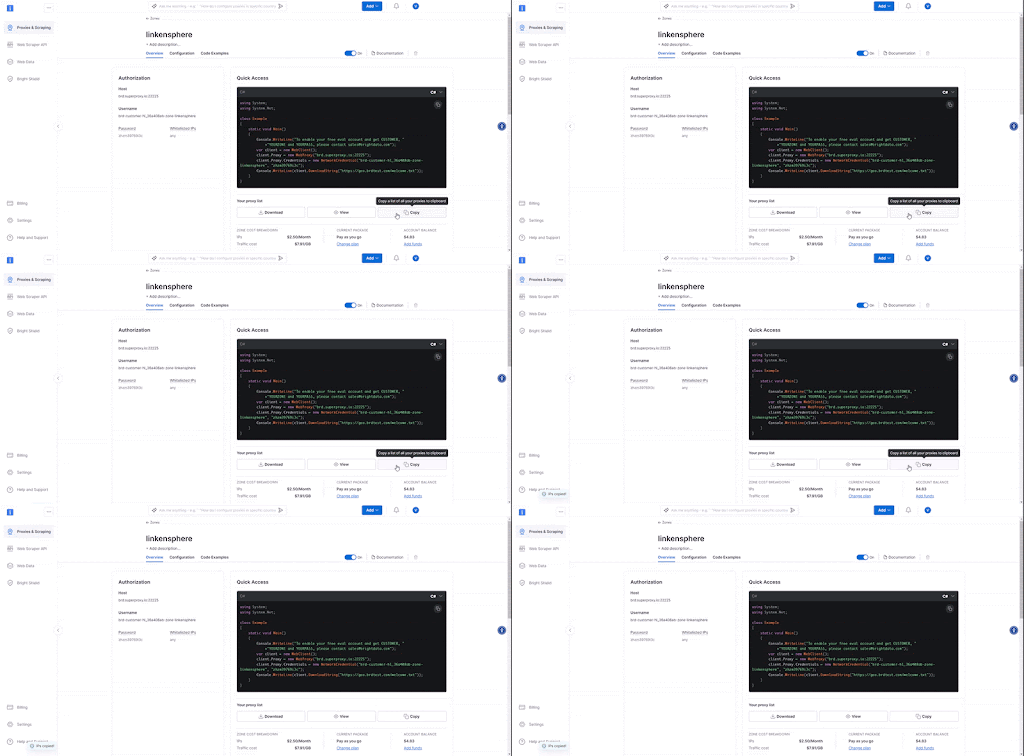
Copy the proxy value from Bright Data:
After configuring the parameters in the ‘Proxy Manager,’ return to the Bright Data platform. At this stage, you need to find and copy the proxy value generated for your zone. This value will be needed for further connection setup in the Linken Sphere browser.
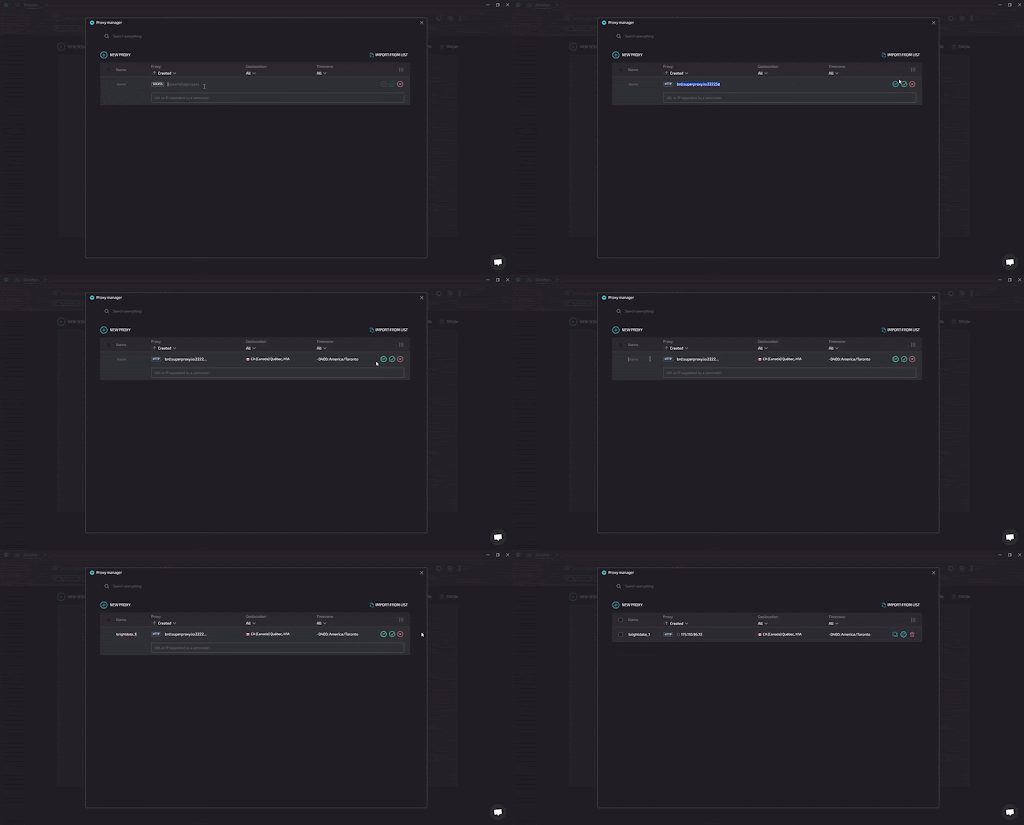
Paste the values into the 'Proxy Manager':
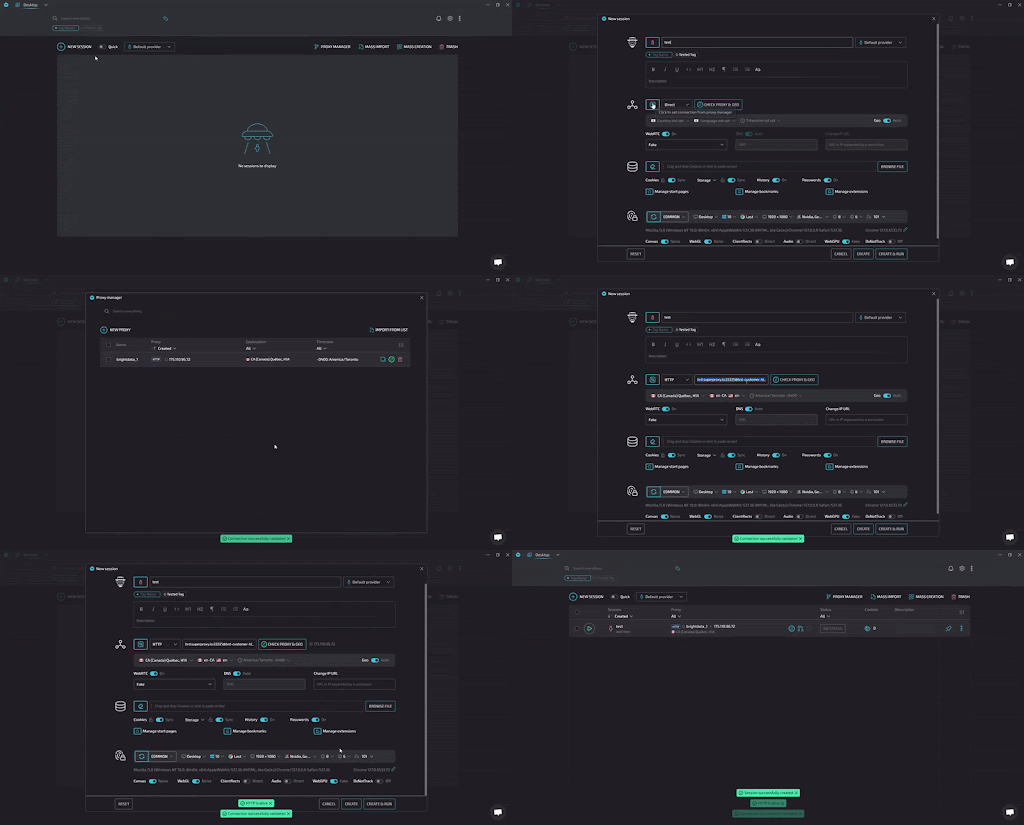
Open the Linken Sphere browser and go to the ‘Proxy Manager’ section. In this section, paste the previously copied proxy value into the appropriate field. Follow the steps shown in the video below to ensure that you have correctly set up the proxy in the browser.
Create a new session:
After setting up the proxy server, the next step will be to create a new session in the Linken Sphere browser. To do this, go to the session creation section and specify a name for the new session. Then find the connection settings block. In this block, select the ‘Establish connection from Proxy Manager’ option. In the list that appears, find and select the proxy that you previously saved.
⚠️Important note: If you are using Bright Data’s Residential Proxies, Web Unlocker or SERP API, you need to install an SSL certificate to enable end-to-end secure connections to your target website(s). This is a simple process, see https://docs.brightdata.com/general/account/ssl-certificate#installation-of-the-ssl-certificate for instructions.
Get proxies for Sphere Browser


모든 개발 경로를 위한 프록시
네트워크, 피어, IP를 자유롭게 조합하여 지속적인 웹 데이터 흐름을 최적화하세요.


Proxy Network Pricing


- 무제한 확장성
- 무제한 좌석
- 프리미엄 SLA
- 99.99% 네트워크 가동 시간
- 무료 프록시 관리자
- 완전한 데이터 커버리지
- GB당 맞춤형 가격
- 맞춤형 솔루션
- 무제한 확장성
- 무제한 좌석
- 프리미엄 SLA
- 99.99% 네트워크 가동 시간
- 무료 프록시 관리자
- 완전한 데이터 커버리지
- GB당 맞춤형 가격
- 맞춤형 솔루션
- 무제한 확장성
- 무제한 좌석
- 프리미엄 SLA
- 99.99% 네트워크 가동 시간
- 무료 프록시 관리자
- 완전한 데이터 커버리지
- GB당 맞춤형 가격
- 맞춤형 솔루션
- 무제한 확장성
- 무제한 좌석
- 프리미엄 SLA
- 99.99% 네트워크 가동 시간
- 무료 프록시 관리자
- 완전한 데이터 커버리지
- GB당 맞춤형 가격
- 맞춤형 솔루션

프록시 및 데이터 수집 분야의 선도 기업

650 매일 수집되는 공개 데이터 TB

매일 새로운 기능이 출시됩니다

세계 최고의 대학 7/10개 제공
